So often school projects require the students to research a topic within a narrow range selected by the teacher. For the last two years, I have had the seventh grade students submit a proposal for a topic they would like to research. The results have been worth the effort. This year, I tied the results of their research into what they learn about authority, bias, content, and usability as sixth grade students.
General Project Guidelines
I ask the students to write a short paragraph explaining the topic they are interested in researching and why they would like to do the research. It is not a simple task for a seventh grade student. Over the last two years, my students have researched a variety of topics including photography, animal habitats, sports, and hobbies.
Once the topic is approved, they receive a Google Doc with a series of questions to guide their research. Each question will eventually turn into a slide in a presentation to be created in Open Office.
Slide 1: Topic introduction - what is the topic, why did you choose it, who else might be interested in the research you gather
Slide 2: What did you know about the topic before you began your research
Slide 3: What is one specific thing you wanted to find out and what did you learn
Slide 4: Continuation of the one specific thing and what was learned
Slide 5: What is a second specific thing you wanted to find out and what did you learn
Slide 6: Continuation of the second specific item
Slide 7: Wrap up - what other questions did the research bring to mind, in what other ways did your knowledge increase, who else will you share your knowledge with and why
Search Skills Refresher
Over the course of the previous years, the students have been working on skills with Sweet Search and Google. We learned how to construct a query to get the best answer to a question by including quote marks in the query and thinking about the words that would appear on a page that had the best answer.
The students used their Diigo student account to bookmark relevant pages. They must always find the content first. Some students need to be steered away from daydreaming by paging through images (depending on their research topic).
Once they find the content, bookmark it in Diigo, and type their answers into Google Docs they may start finding images for their presentation. The students continue to need direction in bookmarking the actual page containing the image. Some students bookmark the Google search result.
By keeping the research results in Google Docs and the bookmarks in Diigo, I am able to easily check up on their progress from any location that has Internet access. The students are able to move to different computers and still have access to all their content.
The presentations reinforce the skills of presenting to an audience, being a good audience member, and designing slides that rely on images for the audience and speaker notes for the presenter.
Extending Analysis of Web Page Content
This year at the conclusion of the presentations, the students were required to go back and look at the pages they bookmarked for content. We reviewed the concepts of website authority, bias, content, and usability. The students reported on up to five websites they used in their research and listed the strengths and weaknesses of each. It gave me useful feedback on where the students are growing or needing practice in evaluating websites. This is a link to a PDF sample of a student's analysis.
Student-Created Project
This analysis led to a project request by a student. They thought it would be interesting to read the Terms and Conditions on a website and create their own terms and conditions. I selected Facebook, Tumbler, and Twitter since the students often have one or more of these types of accounts. First they chose to open a document with a copy of the terms and conditions. They worked with a partner to highlight sections they did not understand. They colored the font of those entries in red. They highlighted sections they wanted to include in their own terms and conditions and changed the color of the font of those words to green.
They really enjoyed creating their own terms and conditions document. The idea was to then have the eighth grade students read their terms and conditions and agree or disagree to them in order to "use" a website. We ran out of time to complete that part of the project. I will do this in September of the 2013-2014 school year. We will then analyze how many students really read the terms and conditions and how many just click agree. We will probably do it with a Google form masquerading as an actual terms and conditions page.
Overall Results
I do believe the students are becoming more critical thinkers in the selection of websites for research. I will continue to help them build their skills next year.
Image Citation:
Creative Commons Attribution-NonCommercial-ShareAlike
http://www.flickr.com/photos/32625013@N00/3312537516
Paula Bailey
Showing posts with label diigo. Show all posts
Sunday, June 16, 2013
Wednesday, April 3, 2013
Website Authority, Bias, Content, and Usability in the Sixth Grade
I wrote a post about increasing skills in selecting from web query search results in March 2011. I continue to refine the investigation every year. This year instead of setting up twelve preselected websites I presented the class with a prompt. I asked the students to try to find the best website to learn who started the Academy Awards and the date of the first awards show.Learning to Use Social Bookmarks
In the fourth and fifth grade, the students bookmark websites in Firefox's Bookmarks tool. The bookmarks are placed in a folder but they are locked into whichever machine the students used when they bookmarked the site. I create student accounts through the teacher console in Diigo. The students create a music video using Creative Commons licensed music. They use Pics4Learning to interpret the song through images. They bookmark the pictures in Diigo and learn how to give the bookmark a title (in this case a name that will remind them of the picture). They enter a description for the Diigo bookmark (in this case what lyrics in the song they will use with the image). Finally, they enter a tag (this year it was America for the song God Bless America). We post their final video with citations in Vimeo. Over time the videos have included God Bless America, America the Beautiful, He Got the Whole World in His Hands, and Go Tell It on the Mountain.
They continue using Diigo to bookmark images for their Dinner with Guests presentation. The students do not share the bookmarks with classmates in this grade level. They are just getting used to the idea of signing on and saving bookmarks. They can use Diigo from home or school for any project.
Deciding Between Web Queries
The next project builds on the fifth grade queries they practiced in order to write reports. As I noted in the opening to this post, I asked two classes of sixth grade students to find me the best website answering the question about the Academy Awards. There were a wide variety of responses. I labeled them A-L and posted them as tiles on a Symbaloo page.
I broke the students into four groups of four to five students. Each group received a job sheet and a grid to analyze their assigned sites.
Authority, Bias, Content, and Usability Experts
Each student takes on an expert role after I walk them through the job sheets. As an example, I use Google to search for "george washington" biography. It gives us a way to tie into what was learned in the fifth grade about using quotes around search terms. I selected this George Washington biography which came up fifth on the list and a second biography which was first on the list. We kick off the discussion with my question, "Why does Google list the links in this order?". The answers range from "it is the best answer" to "someone paid for it to be there" to "I don't know".
I shared information about how Google looks at the title of the web page, the URL, and how many times your words appear on the page. There is a great short video by Google about this topic on YouTube. We did a search for Jet Blue Airlines to see what an ad looks like as opposed to an unpaid search result.
We look at the job of the content specialist. This person finds the strengths and weakness of the page based on how understandable the content is to a sixth grade student. They see if they can find out when the work was updated or created. They think about whether they would find better information in a book or encyclopedia.
The bias/purpose specialist finds the strengths and weaknesses of the site based on the purpose of the site. They think about why the site was created: to discuss, sell, promote, or parody information. We talk about the meaning of the domain of websites: .com, .org, .edu, .net, .gov, and country codes. We learn about personal webpages within sites that contain a tilde (~).
The usability/design specialist concentrates on how easy or difficult it is to maneuver around the site. They see if other links work or are broken. They look for grammar and spelling errors. They determine how well laid out and easy it is to move around the site.
The authority/credibility specialist has the most difficult job. They try to learn about the author of the site and their credentials. They try to find out who owns or sponsors the site. We learn to truncate the URL by cutting back from the starting site and removing part of the website address until we can determine who wrote the site. In the example from George Washington we started out with the original URL.
http://www.oswego.edu/library2/archives/digitized_collections/granger/georgewashington.html
http://www.oswego.edu/library2/archives/digitized_collections/granger
http://www.oswego.edu/library2/archives/digitized_collections
http://www.oswego.edu/library2/archives
http://www.oswego.edu/library2
http://www.oswego.edu
As the URL is cut back to a smaller URL by removing the rightmost / and the words that follow it, the students can find out more information about who wrote the website. I point out that sometimes they might receive a message that they are not allowed to access that portion of the site. They can continue trimming the URL and they will again see more information.
The authority specialist also tries to find out who links to the website with a Google option:
link:http://www.biography.com/people/george-washington-9524786
We look to see if every link is from the main parent website (biography.com) or other sites. We see if there are a few links or many pages.
The students self select jobs by choice or rolling a die. The student who rolls the highest number gets first choice of job and so on.
Solo Work and Group Work
Students work independently to look at six websites and evaluate the site based on the job sheet. The type their analysis into a document with a chart. Once they are finished, they rank the sites from 1 to 6 with 1 being the best site and 6 being the worst. As they finish, they see if their partners need help analyzing the sites from a different perspective. Finally, all group members come together to decide which was the best site overall and which was the worst.
When all analysis is complete, I call the teams up to the front of the room. Two different groups (which I call Group 1 and Group 3) analyze sites A-F and two other groups (2 and 4) have analyzed sites G-L. It is interesting to hear the students explain from the four different perspectives why they selected their site as the best. After group one presents their evidence, group three has a minute to ask clarification questions. Group one then has a minute to confer and respond. It was most interesting to find that the students in one class had chosen the same site as best in one group and worst in the second group. The search result in question was from the Wikipedia.
My Goal
I want my students to really start thinking about how to not only choose search terms but the merits of choosing one result over another.
Friday, October 15, 2010
Working With Diigo and Students
I recently set up some accounts under the Diigo education banner. For the last couple of weeks students have been working on bookmarking images for a Google Maps project. I have a Delicious account for school. I keep links for all the grade levels in the account. The use of Diigo will enable me to give students the ability to electronically and socially bookmark without the need for email addresses.
One major change in the account is the addition of a Teacher Console. From the console, I created groups for the sixth, seventh, and eighth grades. Since I want the accounts to stay with the students year over year, I named the groups grad2011, grad2012, grad2013. In this way, I will be able to let the group travel with the students through their school career.
After the group is created, I fill in a spreadsheet with the student name, id, and password and upload the .CSV version of the spreadsheet to Diigo. For the last several years, I have maintained a spreadsheet with user names and passwords for each student following a pattern of SMS20xx-yy where xx is the year they will graduate eighth grade and yy is a number from 01 to 99. The user name I assign sticks with the student through their school career. The password is at least seven characters consisting of letters, numbers, and at least one capital. With this pattern, almost every website I create accounts on "allows" me to use the same user name and password.
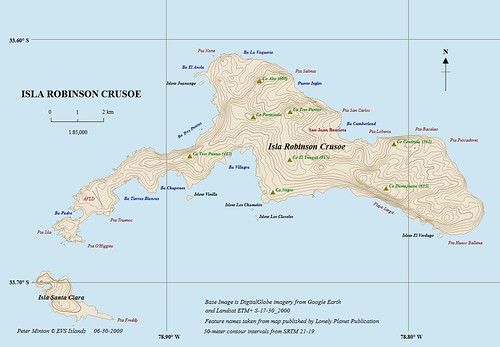
With our project, the students are working in groups of five to pull together a Google Map of the travels of Robinson Crusoe. They used a Google Doc to brainstorm images and locations for the map. A group leader assigned two locations per group member.
Week 2 - Learn to edit bookmarks and assign a bookmark to a shared group.
The students searched for two images per location that would represent something Robinson Crusoe would have seen or done at this spot. They bookmarked the image and tagged the image with the group leader's name.
Week 3 - Learn to comment on another student's bookmark.
Once all the images were bookmarked, the students began to look at all the groups images. They left comments on whether the image made sense in relation to the book. In some instances, the Google page (not the image) was bookmarked so comments reflected the need to try again.
Week 4 - Learn to edit bookmarks.
I like the ability to review all the bookmarks online. Last year in a sixth grade music project, the students bookmarked offline in Firefox. I was not able to see how far they were in their project. With the online bookmarks, I can better estimate how much more work each student needs within the project.
As I reviewed the bookmarks, I noticed that some students bookmarked with the "wrong" tag. They tagged with a name of a person who was not their group leader. This led to students not commenting on their link. I found that some students forgot to share with the group. This led, again, to some links missing comments.
Image Citation:
Mr. Minton. "Robinson Crusoe Island - EVS Precision Map (1-85,000)." EVS-Island's photostream. 30 June 2009. 15 Oct 2010.
http://www.flickr.com/photos/evsmap/3675096513/
Getting Started
The most difficult part was actually getting myself set up with an email address associated with the school. Once I had a school email address, I sent a request to Diigo and was approved within a couple of days.One major change in the account is the addition of a Teacher Console. From the console, I created groups for the sixth, seventh, and eighth grades. Since I want the accounts to stay with the students year over year, I named the groups grad2011, grad2012, grad2013. In this way, I will be able to let the group travel with the students through their school career.
After the group is created, I fill in a spreadsheet with the student name, id, and password and upload the .CSV version of the spreadsheet to Diigo. For the last several years, I have maintained a spreadsheet with user names and passwords for each student following a pattern of SMS20xx-yy where xx is the year they will graduate eighth grade and yy is a number from 01 to 99. The user name I assign sticks with the student through their school career. The password is at least seven characters consisting of letters, numbers, and at least one capital. With this pattern, almost every website I create accounts on "allows" me to use the same user name and password.
Leading the Students Through the Process
Week 1 - Learn to sign in. Review multiple tabs in a web browser. Bookmark two images with a description and tag.With our project, the students are working in groups of five to pull together a Google Map of the travels of Robinson Crusoe. They used a Google Doc to brainstorm images and locations for the map. A group leader assigned two locations per group member.
Week 2 - Learn to edit bookmarks and assign a bookmark to a shared group.
The students searched for two images per location that would represent something Robinson Crusoe would have seen or done at this spot. They bookmarked the image and tagged the image with the group leader's name.
Week 3 - Learn to comment on another student's bookmark.
Once all the images were bookmarked, the students began to look at all the groups images. They left comments on whether the image made sense in relation to the book. In some instances, the Google page (not the image) was bookmarked so comments reflected the need to try again.
Week 4 - Learn to edit bookmarks.
I like the ability to review all the bookmarks online. Last year in a sixth grade music project, the students bookmarked offline in Firefox. I was not able to see how far they were in their project. With the online bookmarks, I can better estimate how much more work each student needs within the project.
As I reviewed the bookmarks, I noticed that some students bookmarked with the "wrong" tag. They tagged with a name of a person who was not their group leader. This led to students not commenting on their link. I found that some students forgot to share with the group. This led, again, to some links missing comments.
Overall Thoughts
So far, the students took so well to Diigo that I've begun using it for the sixth grade music project which started this week. It remains to be seen what I learn in using this website with the students.Image Citation:
Mr. Minton. "Robinson Crusoe Island - EVS Precision Map (1-85,000)." EVS-Island's photostream. 30 June 2009. 15 Oct 2010.
http://www.flickr.com/photos/evsmap/3675096513/
Thursday, August 26, 2010
A Busy Summer and the New Year Ahead
I was just looking at my last post date. I realized a whole month has passed. What a busy summer it's been. I'd like to briefly share some highlights.
The benefits of a Diigo educator account can be found on the link. I am most happy to be able to create accounts without the need for email addresses for each student AND student accounts are kept private from other users, ads are education only, and we can bookmark and annotate webpages in groups.
I found a great training resource online for Windows. I updated the Creative Commons licensed flipcharts for the Mac operating system. I put many links for ActivInspire on this Google Site. The specific Mac training flipcharts are on this page.
We have only worked on the first five training flipcharts. It gives the teachers enough material to feel comfortable with the board. We learned how to navigate the Download and My Flipchart folders on the dock. The teachers signed up for Promethean Planet accounts and learned how to open old .flp and new .flipchart files and save them. This led to an interesting discussion about File Save vs. File Save As.
As part of the training, I was requested to create some screencasts. As a result, I decided to get a one year subscription to Jing Pro.
format. This is so useful. I was able to create three little screencasts and stitch them into a longer movie in iMovie. Feel free to use these screencasts:
Finding a Flipchart on Promethean Planet
Mac Folders
Playing Back a Vimeo Video in a Larger Size
Opening, Reviewing, and Saving a Flipchart
Photo Credits:
Ann Oro.
A School Email Account
I was able to sign up for a Diigo educator's account this week. In order to (easily) get one, a school email id is required. Over the summer, I was assigned a stmichaelscranford.org email address. I won't use it for much besides signing up for education accounts to use in class. Diigo was something I wanted to start using with the students. I have a Delicious account with links for school that I've been using for at least three years now. I originally thought I would teach the students to use Delicious to save bookmarks, but it was too involved with email addresses. The benefits of a Diigo educator account can be found on the link. I am most happy to be able to create accounts without the need for email addresses for each student AND student accounts are kept private from other users, ads are education only, and we can bookmark and annotate webpages in groups.
Promethean Board Training
I have had eight hours of training with the teachers to use the Activboards. There will be six in the school this year. Previously only the computer lab had a board. The training went exceedingly well. I found a great training resource online for Windows. I updated the Creative Commons licensed flipcharts for the Mac operating system. I put many links for ActivInspire on this Google Site. The specific Mac training flipcharts are on this page.
We have only worked on the first five training flipcharts. It gives the teachers enough material to feel comfortable with the board. We learned how to navigate the Download and My Flipchart folders on the dock. The teachers signed up for Promethean Planet accounts and learned how to open old .flp and new .flipchart files and save them. This led to an interesting discussion about File Save vs. File Save As.
As part of the training, I was requested to create some screencasts. As a result, I decided to get a one year subscription to Jing Pro.
Jing Pro
I have used Jing's free version. It works well. The downside is that the files are saved in Flash format. With the pro version, I can save the files (without ads) to the MPEG-4 .m4v format. This is so useful. I was able to create three little screencasts and stitch them into a longer movie in iMovie. Feel free to use these screencasts:
Finding a Flipchart on Promethean Planet
Mac Folders
Playing Back a Vimeo Video in a Larger Size
Opening, Reviewing, and Saving a Flipchart
K12 Online Conference 2010
I submitted a proposal to the K12 Online Conference for 2010. The topic is Free Learning and Inspiration Online. It is based on the session I led at New Teachers Camp (ntcamp) in July. Hopefully it will be accepted.Global Education Conference 2010
I am on the Educator Advisory Core Group for the new for 2010 Global Education Conference. It is scheduled for November 15-19 and will run around the clock. It is intended to get more educators comfortable with global collaborations. I will be writing more as a I learn about the conference. There is currently a call for proposals for sessions to run in Elluminate. If you've been participating in global online projects, consider offering a session. The timing for the sessions is 20 to 60 minutes including discussion/ Q&A time among the participants. There is an intent to get mentor partnerships established to help new teachers gain a comfort with global collaborations.EdCamp NYC
I am a co-organizer for EdCamp NYC. It will be on Saturday, December 4th at The School at Columbia University in New York City. I've spent the summer working on the website for the group. If you are in the NY, NJ, PA, CT area, consider stopping by the website to request your free ticket to the event. It promises to be outstanding based on my experience with EdCamp Philly and ntcamp. Keep you eye out for more information as I get closer to December fourth.Back in the Saddle Again
After a restful summer, I'm looking forward to the new school year ahead. Old projects and new projects with the students are at the top of my mind right now!Photo Credits:
Ann Oro.
Tuesday, July 22, 2008
Google Custom Search Eye-Opener
Summer Podcast Series
I've been listening to several podcasts over the summer. Last night, I listened to Alan November at BLC08 via Bob Sprankle's Bit by Bit podcast. The title is Teaching Zack Webliteracy. I've been hearing people talk about Alan November and BLC over the last year, so I decided to take time to listen to the podcast. The presentation covers a lot of ground. Along the way, it re-pointed me to Google Custom Search engines.
Google Custom Search Engines
Google now allows anyone to create a custom search engine. I've been thinking about them as a better way to help students find information on the Internet. The basic idea is that you can build a list of websites that you value. Those websites sit under and umbrella of one name. Instead of going to a standard search engine, you can look through your custom search engine. I did it this morning and the first test search sent me here to my blog to share what I've seen.
The Plus and Minus of Social Bookmarks
I have used delicious in three different situations: for my students, for the faculty in my building, and for a training session I do with public school teachers in an alternate route to certification course. It is superior in providing an electronic source list for these individuals. The downfall that I am seeing is that since I am the person creating the list, it works for me. For a social bookmark to work well, I think the person using it really needs to be the person generating it.
For example: My students are outstanding from K-8 if I tell them go to the eighth grade links and click on the link that says "Wiki Research Wrap-Up Survey". They seem to have a much harder time if I say go back to the copyright wiki. Invariably, they ask which one and I'll tell them it's on the second page of links, the title is "Seventh and Eighth Grade Wiki Project". I'm not complaining. It is much better than before. I know have a list of all the links we used in the 2007-2008 school year. I will add to the links for years to come.
How Can I Improve Things
I am planning on sending a survey out to the teachers in the alternate route class in the next couple of weeks. I am curious to see how many of them ever went back to the delicious account I created for the class.
I'm also not sure how many of the teachers in the building tried our delicious account over the summer after I spent three hours with them the last day of school.
I signed on to Google Reader this morning and clicked on the more menu item at the top of the page, and then clicked even more (see image on the right). This brought me to a massive page of Google offerings. I was looking for the link under Explore and Innovate titled Custom Search.How Hard Is It?
It was really easy to create the custom search. After choosing the Create a Custom Search Engine button, I filled in a form detailing the name I wanted to give the search engine and the list of links to search. I have 63 links in my Saint Michael Teachers del.icio.us account. In a second tab, I opened delicious, right clicked on each link, and selected Copy Link Location from the pop up menu. Returning to the first tab, I right clicked and pasted the link in the sites to search box.
How Wonderful Is It?
Once the search was created, I typed in the following query: "lesson plan" "Google Earth". Here are my results!


These are results I do not have in my delicious links for Google Earth! I am amazed, and astounded, and look forward to testing it out further.
The Final Touch
The original URL looks like this:
http://www.google.com/coop/cse?cx=014795919024616124011:4lsrq16cch0
I went to MOO URL and gave it a name: searchsms.
I can now give out the following to the teachers: http://www.moourl.com/searchsms which will stand for Search Saint Michael School. It ties it into a nice package.
Have you done anything with custom search? Have you written any blog posts about it? I'd like to know more about how others are using this tool.
Image Citation:
"iPod gathering." nikitac's photostream. 2005 Oct 28. 2008 Jul 22.
http://farm1.static.flickr.com/30/56898961_fa5b5d2f30.jpg?v=0
Subscribe to:
Posts (Atom)