Showing posts with label scratch. Show all posts

Sunday, May 8, 2011

Scratch and Pen Commands

This year, the sixth grade students are exploring Scratch and pen commands. It is Logo-like in application. My goals are to give the students more exposure to the Scratch program while making visual shapes and explore the mathematics of geometric shapes.

Setting the Stage
The students have created several other projects with Scratch in earlier grades. The projects revolved around moving sprites and programming a simple dress up game

Thinking About Shapes
We walked through steps to create a square using the pen commands. I have laid out the lesson on this wiki page. Once they had an idea of how the commands worked, they really enjoyed experimenting with the handout (also on wiki) and seeing how changes to the command blocks changed the shapes drawn on the screen.


Exploring Multiple Repeats
Once basic shapes are mastered, the students will explore creating spirals by embedding shapes in repeat statements and modifying the angle at which the sprite starts. They will extend those spirals by changing the pen color and pen size. The lesson handout is on this wiki page.


Further Extensions
I am in the process of creating a few more handouts for students who work through these first two projects. All of the previous concepts work on the basis of 360 degree turns to complete a regular shape such as a square, pentagon, or octagon.


Thursday, April 1, 2010

Scratch - Take Three

I continue to enjoy working with student using Scratch. This year, I upgraded all the computers to the newest version 1.4. I will begin working with grades five through eight after Easter break. I started with sixth grade this past week, and found that we hadn't used it last year. I'm starting over with the sixth in a different way.

Laying the Foundation - Lesson One
I introduced the program as I usually do: we gave the cat a move 10 steps block and double clicked the block. Next we added a goto x: 0 y: 0 block to the screen and double clicked it to bring the cat back to the center of the screen. We added the when green flag is clicked icon to the move 10 steps block and saw its effect and added a turn 15 degrees right. I asked them what forever means and showed them how to include a forever block with the commands. Then they took some time to play with the two numbers seeing what happened if they made the number larger and smaller. They double clicked the goto x: 0 y: 0 block when they lost their cat.

The Sprites and the Stage
We brought on another sprite of their choice with the Choose new sprite from file option. This year, I made sure to tell the students *not* to select a sprite with a script attached. This kept me out of the problems I ran into in the past with unexpected scripts. They tested out the Costumes tab above the script area and used the Edit button to customize their character. The students have no end of fun customizing. I kept the time very short - just two minutes - so that we could test out a couple of extra options.

I had the next sprite react to a click. Sprite two was given a when sprite2 is clicked control block with a look of think Hmm... for 2 seconds. While they worked on those commands, I explained how to create a stage of their choice. They are very familiar with drawing tools from their work in Kid Pix and Gimp, so I simply had them click on the stage. I pointed out that the Costume tab changes to a Backgrounds tab and they went to work. Immediately, they wanted to test importing a stage and enjoyed looking at the possibilities.

One of the students found the point towards mouse-po
inter motion block, so we did that as a group as well.

Continuing the Process - Lesson Two
In our second 42 minute period, I wanted to teach the students some commands that would allow the sprites to interact. We started a new file with the cat.

This time, we started with the concept of repeating a certain number of times versus doing something forever. I asked them what they thought would happen if we told the computer that when the green flag was clicked the program would have the cat move to x:0 y:0 10 times. We teste
d their opinion and saw that the cat didn't appear to do anything, but it was told to move to 0,0 ten times.

I asked a few students to pick a number from 0 to 100. We discussed that I had no idea what they would say. They could have picked the same number or different ones, but it would be from 0 to 100.

We dragged a pick random 0 to 10 operator blo
ck into the x slot of the goto command. We tried to predict what would happen and then the students tested it. The cat randomly moves left and right. I asked them to follow that by placing a random operator in the y slot of the goto command. Now the cat jumped all over the stage. I wanted the students to understand that they could slow down the operation, so we added a wait 1 secs control block beneath the goto block.

Copying and Adjusting Commands
Next, I wanted the cat to be chased, so we added another sprite and dragged our cat's script to the second sprite. A few students needed help recognizing the light white line around the second sprite that signaled the script would be copied.

I wanted the students to become aware of the sensing feature. I asked Student A if they were sitting next to Student B and they said yes. I asked Student C on the other side of the room if they were sitting next to Student B. They said no. I told student A that if they were sitting next to Student B to please clap. I did the same for Student C. We moved on to the if touching block.

We added an if block to the repeat loop. I pointed out the hexagon shape in the if block. We moved to the sensing commands, dragged in a touching block, and set it to Sprite2. We added a command from the previous class to think Hmm for 2 seconds. If Sprite1 sensed Sprite2, we would see the message.

Closing the Lesson and Testing Sprite Changes
I wanted to make another very visual change to the sprites if they touched. For this, we used Sprite2. We added an if block with a touching option just as we did to the cat, but instead of using the think block, we went to the Looks commands and dragged in a change color effect by 25. We tested the new option and found that every time Sprite2 sensed Sprite one, the color changed by 25. If we wanted Sprite2 to go back to the original color, we would have to tell it to clear the graphic effect. When those commands are placed one after another, the change happens too fast for us to recognize it, so we needed a wait 1 secs block between the two commands.

They finished the lesson by testing the other change options: fisheye, whirl, pixelate, mosaic, brightness, and ghost. Some students tried random numbers in the effect by 25 portion of the block. Many customized the stage and sprites.

Overall, I felt that this was an effective way start to Scratch with the sixth graders. A number of them told me that they had already downloaded the program at home.

Friday, February 1, 2008

Scratch - Take Two

My second go-round with Scratch is wrapping up. I've been working on this project with the fifth graders. I wanted to get them going on Scratch, but knew I had to aim for a simpler project than the one I did with the seventh and eighth graders. They do not have experience with Logo.

Before Christmas break, I spent one class getting the students to test the drawing tools. They just messed around with painting on the stage. I also showed them how to bring in the pre-drawn sprites. We did a little very simple programming. They used the control "When right arrow is pressed" along with the motion "move 10 steps" and "When left arrow is pressed" "move -10 steps". We talked a little about thermometers and how to use the negative or minus sign to move backwards. For a little extra fun, we also added the sound command to "play sound pop". The recorded their own noises and imported some pre-recorded sounds.

On return from Christmas, I walked them through a couple of "dress-up" samples I found in Scratch over the holidays. I gave them a choice of making a house with parts to decorate it (shrubs, doors, windows, etc) or a face (eyes, nose, mouth, etc). Some of the fifth graders chose aliens and castles, but those were the two major ideas for stages. It took one 42 minute period to get this accomplished. Some students are still finishing up the stage.

The next class, I showed them how to create their own sprite. They took the next 42 minute period to create the doors, windows, and whatever else they wanted to use to decorate the stage.

Class three took us to a discussion of the need to clean the stage after dressing it up. We talked about how I could "broadcast" hello to an individual in the group. They would receive the command and then "say" something back. That accomplished, I demonstrated a button with the "when sprite clicked" "broadcast" command combo. As a group, I had the students bring in the button sprite, shrink it, and type the word clean on it. We added the script to broadcast "clean" when it was clicked. We also added a "when I receive" control and a move command. I demonstrated how the x,y coordinates changed as I moved the mouse. I also showed them that if you click on the sprite it locks in its coordinates in the move command. We also saw how to compare what is in the move command with the coordinates of the sprite for troubleshooting purposes.

We took all of class four to finish up stages, sprites, and scripts. Some children finished before the class period was over, so I started to individually show them how to add a "when sprite clicked" control with a "play sound" command.

In class five, all the children saw as a group how to add those click controls and sound commands. It was like they never saw it before Christmas, which is fine. Again, some children finished early, so I had those who made faces start a house and visa versa.

Class six was intended to be the class to sum it all up. We created a second background for the stage with instructions on how the program works. We added a "when green flag is clicked" control with a "switch to background instructions" and a "when stage clicked" "next background" set of commands. This works well for most of the students. A couple went ahead and had already set up multiple backgrounds for different dresses for their faces so we are working on some more programming.

On the whole, it was a great experience. There are 14 students in each class and it really wasn't overwhelming with a 1:14 ratio of "Mrs. Oro I need help". We are going to finish up over the next two classes while getting our brainstorming together on our Classroombraids project.

Take a look at the first three projects. 5B_JN needs some scripting work. That file is one of the projects with multiple "dresses". 5B_VM is a house and 5B_CS is an alien. One really neat thing is that they want to share the projects with their Classroombraids partner schools.


Friday, January 11, 2008

Student Reflections in the Class

As some of you know, I've been working with Scratch in computer class since just before Christmas. My students in the seventh and eighth grade have a bit of a programming background through our use of the Logo programming language. (Skip to paragraph six for reflections.)

Background
We used ACSLogo for the last two years. I still like Logo, but I would say that many of the students do not put it in their top things to do in class list. Looking at my survey from class in September:

Seventh Grade Students would use ACSLogo:
38.5% (15 students) anytime
23.1% (9 students) once per trimester
7.7% (3 students) once per year
28.2% (11 students) if I must
2.6% (1 student) didn't use it as their previous school

Eighth Grade Students would use ACSLogo:
4.8% (1 student) anytime
23.1% (6 students) once per trimester
4.8% (1 student) once per year
57.1% (12 students) if I must
4.8% (1 student) didn't use it at their previous school

I probably would have went through at least a few days of Logo if Scratch didn't show up. I wanted to learn more about how the students felt about their experience with Scratch, so it was a good opportunity to teach them about Classblogmeister.

I don't have numbers, but after reviewing all their blog entries, they seemed to like it on the whole. It's a much richer environment with the ability to use graphics with the programming. It's a little more on par with the HyperLogo I used five or six years ago.

The Project

It was A LOT of work learning Scratch and putting it to a useful purpose. Since we only meet twice a week for 42 minutes, it takes a long time to finish a project. While part of the class was finishing a previous project, I had some students follow the Scratch tutorial put together by the MIT Lifelong Kindergarten group. Their Getting Started PDF file is quite good.

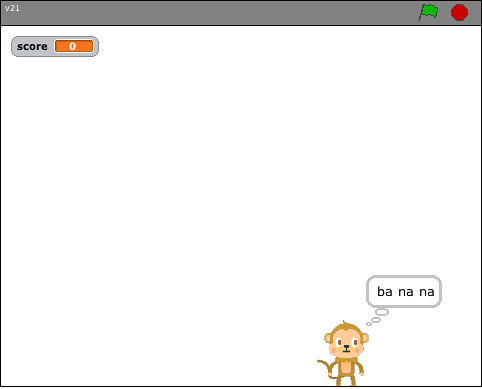
The problems arose in that the students didn't have a focus on creating a project. Over a weekend, I developed a simple Monkey Game. I uploaded four of the versions created by seventh graders: Monkey1, Monkey2, Monkey3, and Monkey4. They haven't gotten any love from the Scratch people (and I understand why). It took at least two and a half weeks (or 5 42-minute classes) to complete the project. Some students had to wait while others received help. They did a nice job of helping their neighbor as they waited for me. There was also the difficulties inherent in some students being out sick and needing to somehow catch up. I have 19 seventh graders a piece in two classes and 21 eighth graders.

The Reflections
Here's the wow factor for me. I know we talk about the importance of reflecting on your work. This was by no means a comprehensive reflection. What I found that amazes me is the number of students who enjoyed making the project step-by-step as a class. I would have thought more students were bored by the process. Also, every student who enjoyed the step-by-step process also felt successful at the completion of the project. These are things I would not normally have found out.

I want to build more reflection into my computer class. The blog is going to become a standard tool in the way I conduct my classes. For the last few years, I have had the eighth grade write a note in one of our last computer classes to tell me what they liked, didn't like, and would change about all their years in my class. It's too late then. One graduating class can give me a glimpse into my success with the students. These blog entries allow me to keep, change, or remove pieces of the program on the spot.

Next Up
I am now working with the fifth grade. They've never used ACSLogo with me. Several are on the school's FIRST Lego League team, though. I am approaching it in the same way as I did with the seventh and eighth. I am leading them thorough a project, but I'm doing a more simple starting project - a dress up project. If I start now with the fifth grade, by the time they are eighth graders, they will probably be able to do some amazing work. This is one of the true benefits of seeing students from Kindergarten to eighth grade. I can build skills. When I arrived, I had to do a lot of simple work (word processing, drawing skills, and the like). What we do now (at all grade levels) is much meatier The blog is going to become a staple. My sixth graders have used it all year in math class. I will certainly get the fifth grade going with Classblogmeister at the end of the Scratch project. It will give students the time they need to digest and reflect on what we just did. It will give me a view into what is and isn't working. It might give you, the reader, some background as you try similar projects.

If you read about something I'm doing that you are too, please drop me a comment. I love to look at other school work. It always points me in a direction that improves my student's work.

Friday, October 5, 2007

Programming Languages and Kids

I didn't start life as a programmer. I did take several programming classes in the local community college. I'll date myself by saying I had a BASIC course on Apple // computers and was excited when the //e came out. I also took COBOL, Fortran, and audited a Pascal course.

As a lab technician, I helped other students figure out syntax and logic errors in the programs, even assembly language which I never had as a course. I had no fear of programming. An adjunct professor scooped me up and I landed a job as a Programmer/ Technician at a national company. I didn't program, I taught people how to use Word and Excel. I learned a programming language of sorts called Mapper and taught the business folks how to generate their own reports.

When I started teaching children, I always thought that programming can lead to more ordered thinking. I wanted to teach some sort of programming language. Enter HyperStudio. It was a program that had already been purchased by the school before I arrived there. Built into HyperStudio was HyperLogo. I dabbled in Logo in college when I taught a College for Kids course. It was fun in HyperStudio, and easy. Enter OS X. I dragged HyperStudio along by running OS 9 in the background. Enter the Intel chip. HyperStudio wouldn't run in native OS X. So I found ACSLogo. It is a free program and I do like it, but I really only dedicate four or so sessions to the programming language. So the kids who like it never really get to far and there are kids who just don't get along with programming.

I've been seeing Scratch on the Moving at the Speed of Creativity blog. I finally downloaded it and ran through a bit of the tutorial. I think I'm hooked. I can't wait until I get further than scratching the surface. Go MIT.