Wednesday, March 10, 2010

Choosing Who Takes a Turn

It's hard to be pick which child takes a turn in class first when there are so many eager students. I gave the Interactive Fruit Machine a try with fifth and first grade today. It was a rousing success.

As a Teacher I Liked...
Several features made this site a favorite for the teacher in me. It was super simple to type in the list of student names. When you're short on time even a few moments can seem like a lifetime. The site gives a little icon that looks like a disk. When you hover over the icon its label is Save As Web Page. A small html file is placed in the computer's download folder. It links to a save space at ClassTools.net. For each class, I saved the list of names and renamed the file: 1a fruit_machine.htm, 1b fruit_machine.htm and so on. Now, I can quickly click the file and the machine is up and running.

The Interactive Fruit Machine was really exciting for the students. I projected it on the board and had speakers attached to the computer. I could see a classroom teacher setting this up on a stand alone computer, too. The teacher could make the Interactive Fruit Machine a classroom job. The student could easily bring up the file and click the Fruit Machine button when required.

My Students Liked...
The look of the Interactive Fruit Machine in action is just fun. I clicked the Fruit Machine button and the names began to spin on the screen. The first grade students were cheering each other on as their classmate's names came up.

When a name appeared, I clicked the Remove button so that everyone got a turn with no repeats.

There are sounds, too. There are clicking sounds as the names spin by and when a name is highlighted, the sound of children cheering.

Learning to Avoid Ads on Web Pages
In the first grade, we were following the CyberSmart lesson for K and 1 called Find the Ad. I chose a math game on the Nick Jr web site called Moose and Zee's Balloon Math. We looked for the word AD or Advertisement.

It's interesting to note that most of the students thought ad meant 1+1=2. To explain the concept of an ad, we talked about commercials that try to sell them a breakfast cereal or juice. They learned not to click on the ads. After everyone had a turn, they had a choice of creating a Kid Pix drawing, using the balloon math on their own, or trying Diago's Puzzle Pyramid. They definitely needed the time to calm down from all the excitement of the Interactive Fruit Machine.


Tuesday, March 9, 2010

Two Worthwhile TED Talks

Yesterday, I viewed two TED Talks on my iPod as I was waiting for my son's karate lesson to conclude. They are so interesting, I wanted to share them here.

Temple Grandin
I enjoyed listening to Temple Grandin at the 2009 Celebration of Teaching and Learning in NYC. She spoke about many similar themes in her TED Talk: The World Needs All Kinds of Minds. I believe most teachers should listen to her talk and think about the logic in her words. It is important to be reminded about how the different needs of students reflect their inner workings. It is fascinating to think about the different types of genius that will be required to solve our world's problems.

Jamie Oliver
The second talk was Jamie Oliver's TED Prize wish: Teach every child about food. Many of us realize we do not do what is best for ourselves in our choices of food. I'm always looking for different themes to work our computer magic in class. He suggests if everyone taught three people to cook a good meal, and they each taught three people in short order we could teach the whole country. How awesome would it be to make a cooking show within the computer lab? It's something to think about. You can learn more about his wish on his TED prize winning page.

Take some time to listen to these two talks. You might find some insight into your classroom and community.

Image Source:
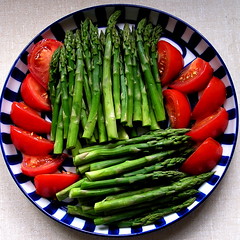
West, Liz. "spring vegetables sc". Muffet's photostream. 2006 Apr 17. 2010 Mar 9.
http://farm1.static.flickr.com/51/130384035_0f47baddd6_m.jpg

Saturday, March 6, 2010

Introduction to PowerPoint in the Third Grade


Click the play icon then the cc icon to see the page notes.

We have finished our third grade bird research project. My intent was to have the students read for content in a web page and write their own sentences about what they learned. With each research assignment, we used a new tool.

PowerPoint as a Writing Tool
I placed a PowerPoint file with the glyph from the Winter Wonderland project in each students folder on the file server. It gave the students their first experience with the file server. We talked about how the files on each computer are "locked" on that computer's hard drive. The file server is connected to each computer in the building, so we can share its hard drive.

The students arranged the parts of the penguin into an individual representation and learned to use the notes section. They wrote sentences telling what each part of the penguin represented. For example, they used one color beak if they like warm weather and another color if they liked cold weather. They wrote five sentences in all to describe the glyph. Next they added three sentences telling what they knew, for sure, about birds.

Learning About Our State Bird
Next, we reviewed what the students might know about the Eastern Goldfinch - our state bird. I did not tell them if they were right or wrong with the details about the eastern goldfinch. The following week, we looked at the flip chart while holding a printout from Little Explorer's Picture Dictionary. I would show a question and the voting results, such as where does the eastern goldfinch live. I asked them to read the page and stand up when they thought they found the answer. Everyone was successful in finding all the answers.

At the end, they retired to the computer and Kid Pix to draw the eastern goldfinch by following the outline on the Little Explorer's printout.

When they returned to class the following week, I had each of their images on the second page of their PowerPoint. They chose five details to share with the class about the bird.

Comparing the Penguin and the Goldfinch
The final activity was creating a Venn diagram in Kidspiration to compare the penguin and the goldfinch. I made a template, which I will place on my project wiki. They found three facts that only apply to penguins. Three facts that only apply to the goldfinch and three that both birds shared.

When they returned the following week, they added three sentences to the PowerPoint slide that contained their Venn diagram. They wrote three sentence: what they liked most about penguins, what they liked most about goldfinches, and one sentence telling why they thought the birds were more similar or more different from each other.

A First Presentation Experience
The work culminated in the students standing at the front of the room, reading their PowerPoint notes, and advancing the presentation by tapping the Activboard with the stylus. They did a great job speaking loud enough for the class to hear, being a good audience member, and switch from one piece of paper to the next - a big juggling job.

All the presentations are on the computer class wiki.

Saturday, February 20, 2010

Be Cyber Smart and First Grade

Every year I work through several Internet safety and citizenship concepts with all the various grades. This week, I am reviewing a computer ethics topic titled "Is This Yours?" at the CyberSmart web site.

Be Cyber Smart
In general, I like the CyberSmart! Student Curriculum. They have lessons in:
  • Safety and Security Online
  • Manners and Cyber Citizenship
  • Cyberbullying
  • Authentic Learning and Creativity
  • Research and Information Fluency
  • Twenty First Century Challenges
When the link is clicked on the menu on the left side of the screen lesson plans and student activity sheets are revealed. The lesson plans are great. They walk the teacher through an overview, objectives, NETS standard, and provide a list of materials, an introduction, and step by step lessons to teach.

From Simple Concept to Analysis
The simple concept behind the lesson on Is This Yours? is that children have to realize that computers in the school are property that must be respected. It comes with a little coloring sheet for use in the discussion. I've rearranged my room and it will be harder for the students to color than in previous years. I've modified the experience by putting together a template in Kidspiration.

Kidspiration Template
This week we will use the template to find three pictures representing items the student may or may not need permission to use. I've placed the template on my wiki. They will then switch to the writing view and add a sentence for each image telling why they do or do not need permission to use the item. The final work will be imported into Word and turned into a single paragraph. I think this extension should help them analyze the lesson using images that might more closely represent their personal experience.

CyberSmart's lesson is a great beginning discussion in digital citizenship. I am looking forward to the complementary Kidspiration template enhancing the content.

Saturday, January 30, 2010

Kidspiration in Kindergarten and First

I have had Kidspiration 3 in the lab for a full year. I'm just starting to get comfortable with the program. I think it will become a very useful tool in Kindergarten and first grade. I've learned how to use the Teacher menu and still have more to learn, but I'd like to reflect on some lessons I've learned.

Kindergarten Colors
The first project I am working on with Kindergarten is sorting by color. This project is intended to introduce Kidspiration to my Kindergarten students for the first time. I found a clear canister icon and dragged three onto the screen. It is actually a terrarium. I labeled one red, one blue, and one yellow. I clicked on the resized terrarium and made it a Super Grouper item by clicking the icon shown on the right and choosing Create SuperGrouper.

I didn't want to give the Kindergarten students so many symbol choices. I know that some of the built-in projects do not have all the symbol libraries. It was then that I noticed the Teacher menu. It is very easy to use the Save With Activity Wizard menu item and select particular libraries.

The actual lesson and Kidspiration file are on my wiki page.


First Grade Colors Extension
I was able to use the same file with the first grade since I did not use Kidspiration with them in Kindergarten. I extended the project with Kindergarten by having them switch to the writing mode.

On day one, they wrote very short sentences telling which color was their first, second, and third favorite of the three colors. They wrote short sentences stating color of the icons dragged into the buckets. On day two, they exported the work to Word and deleted the blank lines between sentences. This will help them eventually turn their outlines in Kidspiration into actual paragraphs in Word.


A Question I Received
As I was working on this project, I had a quick exchange with Christy Tvarok Green. She asked me if you can "freeze" a template in Kidspiration. I was able to find this option on the Teacher menu. I chose Select All items on the page and from the Teacher menu choose Locked Item. Now when I open the template, students can still type in boxes and move images to a box, but they can not move or delete the boxes. This will be very helpful in the early grade classes.