Sunday, April 25, 2010

State Research: Learning to Use Keywords in a Search Engine

In third grade, the students complete a state research fact sheet. Usually, I take the students directly to a web page to work on the research. This year, I began laying the groundwork for successful search strategies.

My Resource on Promethean Planet
I've uploaded a set of flipchart pages to Promethean Planet. I was worried that teachers who do not have an ActivBoard would be excluded from using the resource. There are two ways you can use this file on your computer - even without a board.


First, you can download a personal edition of ActivInspire. Go to the Promethean Planet web site. Sign up for a free Promethean Planet account by clicking Register. Go to the download page.

Second, you can dowload the free flipchart viewer. I am not sure if this is just for old ActivPrimary and ActivStudio files or the old flipcharts and the new ActivInspire charts.

Once you have an account, you can download my resource file.

Working Through Search Engine Concepts
First, I introduced the students to the facts that they would be finding on the worksheet. We used the state of New Jersey as the example. Some students already knew the state capital. Most know the state bird after our work earlier in the year.


Next, I asked them how a third grade student could learn the details about their state such as the land area or three largest cities. The students knew they could look in a book or go to the Internet. Page two of the flipchart allows the students to drag those hidden images from behind a U.S. flag.

With that information in mind, students took turns dragging six search engine names from behind an image of a computer. The list includes Google, Bing, Ask Kids, Yahoo Kids, Fact Monster, and Kids Click! As each image was dragged from behind the computer, I had the students who have used that web site stand up. Getting students moving during a lesson is always helpful. It's an easy way to build some movement into a lesson.

Part of the lesson is learning about key words. Before starting to get this idea across, I wanted the students to focus on how they use a search engine. I have noticed over the years that some students tend to type in questions or long sentences. The fourth slide shows the
question: What is the population of Iowa? We used the ActiVotes to find out how many students type a whole sentences, short words, or sometimes both.

With that information in mind, we begin discussing key words that could be used to find the information on a search engine. I kept reminding the students of the individual items they needed to find and the state name. For example, "Remember we are looking for the population, land area, three largest cities, governor, and state flower of New Jersey." Once we had many keywords listed, I pointed out that they would have to complete the search nine times to find out all the details. If their teacher gave them two states, it would take about 18 searches.

On flipchart page six, I asked the student if they thought the words state research would be helpful keywords. They used the ActiVotes to agree or disagree.

We looked at some top results for the key words. We found that there are several web si
tes that would allow us to type in a state name and locate many facts.
But I Don't Have ActiVotes...
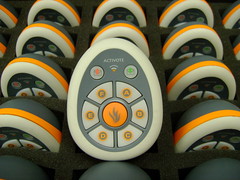
I think the ActiVotes are a great way to involve the students in a lesson. If you do not have them, there are a number of ways you can have the students respond. You could give them a red, yellow, and blue index card to represent A, B, and C. You could use dry erase boards. There are a number of options electronically including PollEverywhere with a web link.

Resources I've Located

The students are going to have a choice of six web sites to complete the research. I think the Fact Monster web page will be the quickest for my students, based on what their teacher wants the students to learn. As I was setting up the ActivInspire flipchart lesson, I came across a few other sites that looked interesting. These include Stately Knowledge, State Facts for Students via the US Census Bureau, Enchanted Learning's State Page, and 50 States.


Thursday, April 1, 2010

Scratch - Take Three

I continue to enjoy working with student using Scratch. This year, I upgraded all the computers to the newest version 1.4. I will begin working with grades five through eight after Easter break. I started with sixth grade this past week, and found that we hadn't used it last year. I'm starting over with the sixth in a different way.

Laying the Foundation - Lesson One
I introduced the program as I usually do: we gave the cat a move 10 steps block and double clicked the block. Next we added a goto x: 0 y: 0 block to the screen and double clicked it to bring the cat back to the center of the screen. We added the when green flag is clicked icon to the move 10 steps block and saw its effect and added a turn 15 degrees right. I asked them what forever means and showed them how to include a forever block with the commands. Then they took some time to play with the two numbers seeing what happened if they made the number larger and smaller. They double clicked the goto x: 0 y: 0 block when they lost their cat.

The Sprites and the Stage
We brought on another sprite of their choice with the Choose new sprite from file option. This year, I made sure to tell the students *not* to select a sprite with a script attached. This kept me out of the problems I ran into in the past with unexpected scripts. They tested out the Costumes tab above the script area and used the Edit button to customize their character. The students have no end of fun customizing. I kept the time very short - just two minutes - so that we could test out a couple of extra options.

I had the next sprite react to a click. Sprite two was given a when sprite2 is clicked control block with a look of think Hmm... for 2 seconds. While they worked on those commands, I explained how to create a stage of their choice. They are very familiar with drawing tools from their work in Kid Pix and Gimp, so I simply had them click on the stage. I pointed out that the Costume tab changes to a Backgrounds tab and they went to work. Immediately, they wanted to test importing a stage and enjoyed looking at the possibilities.

One of the students found the point towards mouse-po
inter motion block, so we did that as a group as well.

Continuing the Process - Lesson Two
In our second 42 minute period, I wanted to teach the students some commands that would allow the sprites to interact. We started a new file with the cat.

This time, we started with the concept of repeating a certain number of times versus doing something forever. I asked them what they thought would happen if we told the computer that when the green flag was clicked the program would have the cat move to x:0 y:0 10 times. We teste
d their opinion and saw that the cat didn't appear to do anything, but it was told to move to 0,0 ten times.

I asked a few students to pick a number from 0 to 100. We discussed that I had no idea what they would say. They could have picked the same number or different ones, but it would be from 0 to 100.

We dragged a pick random 0 to 10 operator blo
ck into the x slot of the goto command. We tried to predict what would happen and then the students tested it. The cat randomly moves left and right. I asked them to follow that by placing a random operator in the y slot of the goto command. Now the cat jumped all over the stage. I wanted the students to understand that they could slow down the operation, so we added a wait 1 secs control block beneath the goto block.

Copying and Adjusting Commands
Next, I wanted the cat to be chased, so we added another sprite and dragged our cat's script to the second sprite. A few students needed help recognizing the light white line around the second sprite that signaled the script would be copied.

I wanted the students to become aware of the sensing feature. I asked Student A if they were sitting next to Student B and they said yes. I asked Student C on the other side of the room if they were sitting next to Student B. They said no. I told student A that if they were sitting next to Student B to please clap. I did the same for Student C. We moved on to the if touching block.

We added an if block to the repeat loop. I pointed out the hexagon shape in the if block. We moved to the sensing commands, dragged in a touching block, and set it to Sprite2. We added a command from the previous class to think Hmm for 2 seconds. If Sprite1 sensed Sprite2, we would see the message.

Closing the Lesson and Testing Sprite Changes
I wanted to make another very visual change to the sprites if they touched. For this, we used Sprite2. We added an if block with a touching option just as we did to the cat, but instead of using the think block, we went to the Looks commands and dragged in a change color effect by 25. We tested the new option and found that every time Sprite2 sensed Sprite one, the color changed by 25. If we wanted Sprite2 to go back to the original color, we would have to tell it to clear the graphic effect. When those commands are placed one after another, the change happens too fast for us to recognize it, so we needed a wait 1 secs block between the two commands.

They finished the lesson by testing the other change options: fisheye, whirl, pixelate, mosaic, brightness, and ghost. Some students tried random numbers in the effect by 25 portion of the block. Many customized the stage and sprites.

Overall, I felt that this was an effective way start to Scratch with the sixth graders. A number of them told me that they had already downloaded the program at home.

Monday, March 29, 2010

Did You Know 4.0 and Seventh Grade


The seventh grade was recently requesting a class using our private, ad-free Chatzy room. I paid $29.00 for the private room. At the rate we are using it, the 5MB of chat should last a long time. This is a short week before Easter break, so I decided to work on some technology awareness concepts.

Did You Know 4.0
I decided to use the Did You Know 4.0 video by XPLANE as the basis for our discussion. I always gain interesting insights when we have Chatzy discussions. This weekend, before the chat, I prepared questions that I wanted to ask at the start of the discussion and at various points throughout the short (less than five minute) video. The entire class took a full 42 minute period.

Room Etiquette
We did a quick review of room etiquette as we have already used the Chatzy room twice. The short list goes as follows:
1. You must sign on with your first name (last initial is only required if we have two or more matching first names).
2. If you sign in with a different name, you must leave the chat room and re-enter with your proper name.
3. Stay on target in the discussions. Save private jokes and messages for your online chats at home.
4. Do not type repetitive characters. As an aside, I don't know why, but students like to add messages like "aaaaaaaaaaaaaaaaaaaaaaaaaaaaaaaaa". I explained that I paid for the chat room and I'm charged by the character.
5. I enter each question preceded by Q and a number. They respond with Q the same number and their answer so I can easily look at the chat later and know what question was being answered.

Question One
Q1. What do you know about the Google Book Search scanner or Google Books?

A few of the students answered with responses such as it finds books, Google lets you preview pages in books, it's all about books and reading, it makes books more available, and it lets you buy books. There were a number of "I don't know" responses, as well.

At the twenty-two second mark in the video, they talk about how a Google Book Search scanner can digitize 1,000 pages an hour. I couldn't find any video specifically titled as a Google Book Search scanner, but I did find a YouTube video of a Kirtas APT 2400 book scanner digitizing a book which worked for my purposes.

Question Two and Three
Q2. What do you watch more of TV shows or YouTube videos?
Here the room was split between TV and both evenly.

Q3. Has anyone in the room every been Rickrolled? I haven't.
Again, the answers were split in half. I had never really even heard of this until seeing the Did You Know video. The answers to the affirmative were actually pretty funny and ranged from "so much *shutter shutter*" to "every time something is good on YouTube he shows up". We ended up watching the Rick Astley, "Never Gonna Give You Up," video at the end of class.

Question Four
Q4. How many text messages do you think the average American teen sends each month?
Their guesses were in the one to four thousand range with some discussion of whether there was a difference between the amount boys and girls sent. The video claims 2,272 - so they were in the ball park with their guesses.

It talks about the fastest text message. It's one thing to read about it, but I found an interesting three-minute YouTube clip of James Trusler trying to break the record on a Guinness World Record show. It was interesting to see him try to type "The razor-toothed piranhas of the genera Serrasalmus and Pygocentrus are the most ferocious freshwater fish in the world. In reality they seldom attack a human." It must be on a commercially available cell phone, completed without the use of predictive texting technology, all punctuation, capitalization, and error-free.

Overall
They felt the text went a little too quickly on the screen. I told them I would bookmark the video on my Schoolnotes page.

Closing the Class


We left the Chatzy room and returned to the chairs in the center of the room. I took them on a brief tour of LIFE Magazine on Google Books. I told them they might find it useful in the remainder of grammar school and into high school as a source document. If they were writing a paper about the death of President John F Kennedy, they could search the LIFE Magazine by decade. Slide down to November of 1963 and bring up the actual magazine. We flipped past old ads and I zoomed in on the article.

We took a quick peek at Alice in Wonderland, pausing to look at some illustrations, and the Harvard College Library book stamp.

It was a very good class. I'm going to repeat it for the other seventh grade and my two eighth grade classes this week.

Wednesday, March 24, 2010

A Different Way to Review Concepts

"Can we do that again?" is music to my ears. I have been reviewing some concepts of communication and collaboration with the sixth through eighth grade students. I put the concepts together in a voting format and offered Krabby Patties to the winners. Everyone was engaged and excited to the last question.

The Concepts

The students (through various grade level projects) have worked on wikis, seen or worked on blogs, created podcasts, and used a chat room. They have participated with students in classrooms around the world both synchronously (real time) and asynchronously (with a delay). We have used a range of tools from word processors, spreadsheets, and presentation to graphics and multimedia. They use the products well, but I wanted to see what terminology was sticking with the students. It gave us an opportunity to discuss misconceptions.

The Methodology
I created an ActivInspire flipchart to use with ou
r Activotes. I set up a "class" called Groupings. The students sat in groups of three and passed the Activote between them as they worked together to select the best answer. If I didn't have the Activotes, I could see using Poll Everywhere with the poll4.com website. It would still work well. Instead of ActivInspire, I would use PowerPoint.

I created a spreadsheet to keep track of which group had correct answers. As each question was presented and voted on, I hid the ActivInspire screen and typed a 1 or 0 for the correct and incorrect responses.

After 15 questions, the winner(s) were declared and they took a Krabby Patty candy. In four of the five classes, there was one winner. In one class, there was a three way tie so the fourth team got a packet of conversation hearts to split.

We Will Do It Again
The eighth grade class, in for the second time this week, wanted to have another competition today. I had to tell them that I would put together a new set of questions for after our Easter break. This is going to become my new standard for what can be dry, information reviews of concepts. It's a win for everyone.

Thursday, March 18, 2010

Photo Mash-Ups in 7th and 8th


Last week, I gave the seventh grade a choice of several projects that I want to accomplish before the end of the school year. Among the choices: editing photos, Chatzy, and Scratch. Editing photos was their first choice.

Combining Photos
I took photos of the seventh grade students. I assigned an eighth grader in each class to take the photos. Each student had two photos taken - one sitting and one standing.

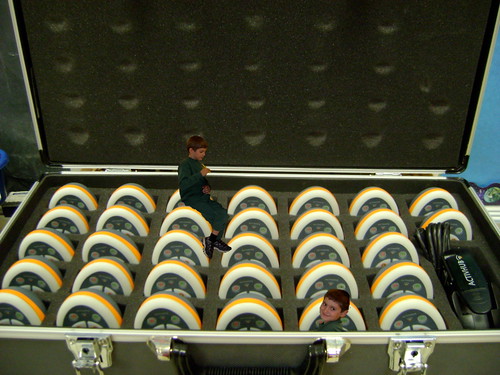
In order to make the images more manageable memory-wise on the machines, I resized them to 800x600 pixels. I gathered a variety of images taken in and around school over the last few years. The object was to make an interesting image by combining a sitting or standing shot into a different background. It was a short one day project. Some students did it because it was their assigned task. Other students enjoyed creating multiple images.

The Gimp Commands
I reviewed a few simple tasks to make the project work.

The lasso tool was used to trace around the sitting or standing image. Next, they used Edit - Copy and Edit - Paste as New Image to isolate the image on a transparent background. The eraser tool is used to eliminate any extra parts of the image that are not required in the final merged shot. We discussed the need to save images with transparent backgrounds as GIF files.

I had the students select the new background. They had to make sure that both images were viewed at 100% size so they knew exactly how much they had to reduce their image with the Image - Resize Image command.

Finally, the shot of the student was combined using Edit - Copy and Edit - Paste Into. The blue four-headed arrow slide the student to the final position on the image before it was Layer - Anchor Layer command was selected.

Finished Product
The final combined image was saved as a JPEG, brought into Word, and printed. If a student did not want to take the image home, I kept it for display in the hall. The project will lead into a very good discussion next week on believing what you see on the Internet. We will use Chatzy for the discussion.

Image Source:
Oro, Ann. "Boys in the Box." njtechteacher's photostream. 16 Mar 2010. 18 Mar 2010.
http://www.flickr.com/photos/njtechteacher/4439604198/