I am in the process of creating a brand new website for our school. I want to leave a breadcrumb trail behind so that if someone else from my school needs to learn what I have done, they will be easily able to do so. A bigger concern is that if I have to do it again for some reason, the entire path will be laid out here. Perhaps someone else will find it useful, too.
Getting the Domain Name
Our school is associated with a parish. There are a multitude of hosting sites to choose from. My choice of HostGator was simple because the church had just set up their new site through this company. The parish chose a business account so the school followed suit.
Advantages of HostGator:
The website was very easy to use. We will be allowed to host unlimited domains on our own account. I am not sure how that will help us yet, but I will find out. There are unlimited POP3 email accounts. They have a one click installation of WordPress. When I had a question, I was able to call their 800 number and I received a quick response from an individual who was well trained and their spoken English was easily understood.
Minor Inconvenience:
The company sent an email requiring the principal to call in to "prove" that we had indeed requested the domain. It took a day between submitting the electronic paperwork and having the principal call the company to verify the transaction. This was not a disadvantage, but it did slow me down a little.
Setting Up the Initial eMail Address
I believe that it will be advantageous to have an admin email address to capture all of the various sites and supports for the system. I created an administrator account in eMail. After signing on to the CPANEL (Control Panel) I looked in the Mail section for the Email Accounts icon. I created an account to administer the website creation project, an account with my own name, and there is a separate account that is automatically created as a "catch all" account for unrouted mail.
 The actual account creation is simple. The Email entry is the "address" of the email such as annoro. The Password must be at least five characters. It checks the strength. Mailbox Quota specifies how much storage space the individual will have in their account.
Installing WordPress
The installation of WordPress was fairly simple. I found the installation in the Software/Services section of the CPANEL. The Quick Install icon gives an array of choices. I found WordPress under the Blog Software heading. When the pointer hovers over WordPress a green arrow appears. Clicking on the green arrow leads to a Continue button to install the software. I did not capture all the steps in the installation of WordPress, but it seemed logical to me as I did it.
Determining the WordPress Theme
This step is quite time consuming. There are many free and paid WordPress themes. I have been taking a course through Team Treehouse. I applied for, and received, a two year scholarship to learn on their website. The most recent course I have been working on is Building a Responsive Website under the Intermediate Website category. Team Treehouse deserves a post of its own sometime. I knew I wanted a Responsive WordPress theme.
I did a search in Google for wordpress responsive theme education and came up with several choices. I then removed the word education from the search query and came up with a few more choices. My principal and I then sat a looked at theme after theme. We started listing what we liked and did not like about the themes. A pattern began to emerge. When all was said and done we settled on Avada. There is a one time fee for the theme. We needed a Paypal account to pay for the theme. After submitting payment I downloaded the theme and followed the 0 - READ ME FIRST.pdf directions. The developers really paid attention to the customer. They left a breadcrumb trail of files to get me to the documentation folder. This folder had a second 0 - read me first.txt with a simple message to open the index.html file.
The Table of Contents menu in index.html contains 24 major categories to get the user going with the theme. I signed up for the free forum support and began following the directions for the WordPress installation. I downloaded a free Museo Slab web font and installed it into WordPress. I imported the demo data into my site. This is a useful step. The demo data installed all I needed to get going with the development as well as the entire sample website. Another post will follow this with my foray into the development of the site.
Keeping Track of Various User IDs and Passwords
There are an interesting collection of new IDs and passwords. I opened a TextWrangler file to log every website, user id, and password. There were more than I would have imagined: the new website has a CPANEL userid and password, downloading the Avada WordPress theme required an envato account, ThemeFusion required an id and password for the community forum, the new website has an associated default email account, the administration account and the one with my name and those associated passwords, HostGator has a billing system with a unique password.
Now the Development Fun Begins
I have already started developing the pages. As I was doing so the other evening, I realized that I was missing a big opportunity for myself by not documenting all the steps. This will serve as a record of what I have done and I am doing. I have a few most posts to get to where I am in the process now. From there forward, I can document as I create. In this way, I will not forget any steps.
This post continues the theme of my last five posts about teaching web search and evaluation skills from Kindergarten through eighth grade. Another important skill set involves understanding the deep web.
The Deep Web
We begin by discussing what the students know about icebergs. Their common explanation is that there is more iceberg underwater that what appears above the surface of the ocean. My explanation to the students in sixth through eighth grade is that there are resources available only if you have a public library card. The Internet is like an iceberg. What Google, Bing, or any other search engine shows is much smaller than what is available. In the state of New Jersey we have access to Jersey Clicks. It is a website that verifies your membership in a public library and gives you access to EBSCO search.
I walk the students through Primary Search, Middle Search Plus, and Academic Search Premier. I explain that we will see results from magazines in our Jersey Clicks work. Magazines usually require a paid subscription. As a service through the public library we can view the articles online. The students in middle school have to read scientific articles for a report each trimester. With this example in mind, we search for electric automobiles.
EBSCO Search
It is very important to help the students locate the full text check box on the search screen. If they do not check the box, they will receive results that include items that cannot be read online. Once we view the results page, we look at the difference between HTML Full Text and PDF Full Text results. The major difference is that the PDF files are generally like scanned images of the magazine pages.
In Primary Search they will see magazines like Boys' Life, Science World, and Science News for Kids. The content is appropriate for middle school students and elementary school children. In 2013 we found 56 entries for electric automobiles. Middle Search Plus located 906 entries. Its results come from magazines such as Time, Popular Science, and Discover. The reading level is much higher than the results from Primary Search. Finally, Academic Search Premier contained 3,849 results. It includes academic papers in addition to more complex magazines such as New Scientist, Futurist, and Kiplinger.
Follow Up Activity
This year, Margaret Thatcher had died the week before we completed this lesson. I had the students find three resources in Google and three from Jersey Clicks. I provided the students with the following prompts in a word processor document. They turned in their completed research as an Edmodo assignment.
- How many entries are there for Margaret Thatcher in the Primary Search?
- How many entries are there for Margaret Thatcher in the MiddleSearch Plus?
- How many entries are there for Margaret Thatcher in the Academic Search Premier?
- How many entries does Google give you for Margaret Thatcher?
- How many entries does Google give you for “Margaret Thatcher”?
- What is the difference in the types of articles you get between Primary Search and Middle Search Plus?
- What is the difference in the types of articles you get between Middle Search Plus and Academic Search Premier?
- What is the difference between Jersey Clicks and Google?
- When might you use Jersey Clicks instead of Google?
- Tell me three things you found out about Margaret Thatcher in Jersey Clicks.
- Tell me three things you find in Google.
We held a class discussion following the research. They understood that they could receive more factual, targeted answers through Jersey Clicks. They were able to quickly see what Margaret Thatcher looked like in Google. The found 6 Primary Search, 292 Middle Search Plus, and 1,260 Academic Search Premier results and over 38 million Google hits.
The end result is that the students recognized that they authority of the articles was much greater for Jersey Clicks/EBSCO and that they could go there for trusted research.
Image Citation
Mjöbäcksvillan Barnaby Iceberg, Family Barnaby
http://www.flickr.com/photos/80120017@N03/8010607983
Creative Commons Attribution-NonCommercial-ShareAlike
So often school projects require the students to research a topic within a narrow range selected by the teacher. For the last two years, I have had the seventh grade students submit a proposal for a topic they would like to research. The results have been worth the effort. This year, I tied the results of their research into what they learn about authority, bias, content, and usability as sixth grade students.
General Project Guidelines
I ask the students to write a short paragraph explaining the topic they are interested in researching and why they would like to do the research. It is not a simple task for a seventh grade student. Over the last two years, my students have researched a variety of topics including photography, animal habitats, sports, and hobbies.
Once the topic is approved, they receive a Google Doc with a series of questions to guide their research. Each question will eventually turn into a slide in a presentation to be created in Open Office.
Slide 1: Topic introduction - what is the topic, why did you choose it, who else might be interested in the research you gather
Slide 2: What did you know about the topic before you began your research
Slide 3: What is one specific thing you wanted to find out and what did you learn
Slide 4: Continuation of the one specific thing and what was learned
Slide 5: What is a second specific thing you wanted to find out and what did you learn
Slide 6: Continuation of the second specific item
Slide 7: Wrap up - what other questions did the research bring to mind, in what other ways did your knowledge increase, who else will you share your knowledge with and why
Search Skills Refresher
Over the course of the previous years, the students have been working on skills with Sweet Search and Google. We learned how to construct a query to get the best answer to a question by including quote marks in the query and thinking about the words that would appear on a page that had the best answer.
The students used their Diigo student account to bookmark relevant pages. They must always find the content first. Some students need to be steered away from daydreaming by paging through images (depending on their research topic).
Once they find the content, bookmark it in Diigo, and type their answers into Google Docs they may start finding images for their presentation. The students continue to need direction in bookmarking the actual page containing the image. Some students bookmark the Google search result.
By keeping the research results in Google Docs and the bookmarks in Diigo, I am able to easily check up on their progress from any location that has Internet access. The students are able to move to different computers and still have access to all their content.
The presentations reinforce the skills of presenting to an audience, being a good audience member, and designing slides that rely on images for the audience and speaker notes for the presenter.
Extending Analysis of Web Page Content
This year at the conclusion of the presentations, the students were required to go back and look at the pages they bookmarked for content. We reviewed the concepts of website authority, bias, content, and usability. The students reported on up to five websites they used in their research and listed the strengths and weaknesses of each. It gave me useful feedback on where the students are growing or needing practice in evaluating websites. This is a link to a PDF sample of a student's analysis.
Student-Created Project
This analysis led to a project request by a student. They thought it would be interesting to read the Terms and Conditions on a website and create their own terms and conditions. I selected Facebook, Tumbler, and Twitter since the students often have one or more of these types of accounts. First they chose to open a document with a copy of the terms and conditions. They worked with a partner to highlight sections they did not understand. They colored the font of those entries in red. They highlighted sections they wanted to include in their own terms and conditions and changed the color of the font of those words to green.
They really enjoyed creating their own terms and conditions document. The idea was to then have the eighth grade students read their terms and conditions and agree or disagree to them in order to "use" a website. We ran out of time to complete that part of the project. I will do this in September of the 2013-2014 school year. We will then analyze how many students really read the terms and conditions and how many just click agree. We will probably do it with a Google form masquerading as an actual terms and conditions page.
Overall Results
I do believe the students are becoming more critical thinkers in the selection of websites for research. I will continue to help them build their skills next year.
Image Citation:
Creative Commons Attribution-NonCommercial-ShareAlike
http://www.flickr.com/photos/32625013@N00/3312537516
Paula Bailey
 I wrote a post about increasing skills in selecting from web query search results in March 2011. I continue to refine the investigation every year. This year instead of setting up twelve preselected websites I presented the class with a prompt. I asked the students to try to find the best website to learn who started the Academy Awards and the date of the first awards show.
Learning to Use Social Bookmarks
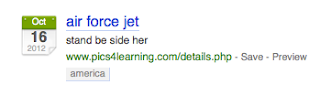
In the fourth and fifth grade, the students bookmark websites in Firefox's Bookmarks tool. The bookmarks are placed in a folder but they are locked into whichever machine the students used when they bookmarked the site. I create student accounts through the teacher console in Diigo. The students create a music video using Creative Commons licensed music. They use Pics4Learning to interpret the song through images. They bookmark the pictures in Diigo and learn how to give the bookmark a title (in this case a name that will remind them of the picture). They enter a description for the Diigo bookmark (in this case what lyrics in the song they will use with the image). Finally, they enter a tag (this year it was America for the song God Bless America). We post their final video with citations in Vimeo. Over time the videos have included God Bless America, America the Beautiful, He Got the Whole World in His Hands, and Go Tell It on the Mountain.
They continue using Diigo to bookmark images for their Dinner with Guests presentation. The students do not share the bookmarks with classmates in this grade level. They are just getting used to the idea of signing on and saving bookmarks. They can use Diigo from home or school for any project.
Deciding Between Web Queries
The next project builds on the fifth grade queries they practiced in order to write reports. As I noted in the opening to this post, I asked two classes of sixth grade students to find me the best website answering the question about the Academy Awards. There were a wide variety of responses. I labeled them A-L and posted them as tiles on a Symbaloo page.
I broke the students into four groups of four to five students. Each group received a job sheet and a grid to analyze their assigned sites.
Authority, Bias, Content, and Usability Experts
Each student takes on an expert role after I walk them through the job sheets. As an example, I use Google to search for "george washington" biography. It gives us a way to tie into what was learned in the fifth grade about using quotes around search terms. I selected this George Washington biography which came up fifth on the list and a second biography which was first on the list. We kick off the discussion with my question, "Why does Google list the links in this order?". The answers range from "it is the best answer" to "someone paid for it to be there" to "I don't know".
I shared information about how Google looks at the title of the web page, the URL, and how many times your words appear on the page. There is a great short video by Google about this topic on YouTube. We did a search for Jet Blue Airlines to see what an ad looks like as opposed to an unpaid search result.
We look at the job of the content specialist. This person finds the strengths and weakness of the page based on how understandable the content is to a sixth grade student. They see if they can find out when the work was updated or created. They think about whether they would find better information in a book or encyclopedia.
The bias/purpose specialist finds the strengths and weaknesses of the site based on the purpose of the site. They think about why the site was created: to discuss, sell, promote, or parody information. We talk about the meaning of the domain of websites: .com, .org, .edu, .net, .gov, and country codes. We learn about personal webpages within sites that contain a tilde (~).
The usability/design specialist concentrates on how easy or difficult it is to maneuver around the site. They see if other links work or are broken. They look for grammar and spelling errors. They determine how well laid out and easy it is to move around the site.
The authority/credibility specialist has the most difficult job. They try to learn about the author of the site and their credentials. They try to find out who owns or sponsors the site. We learn to truncate the URL by cutting back from the starting site and removing part of the website address until we can determine who wrote the site. In the example from George Washington we started out with the original URL.
http://www.oswego.edu/library2/archives/digitized_collections/granger/georgewashington.html
http://www.oswego.edu/library2/archives/digitized_collections/granger
http://www.oswego.edu/library2/archives/digitized_collections
http://www.oswego.edu/library2/archives
http://www.oswego.edu/library2
http://www.oswego.edu
As the URL is cut back to a smaller URL by removing the rightmost / and the words that follow it, the students can find out more information about who wrote the website. I point out that sometimes they might receive a message that they are not allowed to access that portion of the site. They can continue trimming the URL and they will again see more information.
The authority specialist also tries to find out who links to the website with a Google option:
link:http://www.biography.com/people/george-washington-9524786
We look to see if every link is from the main parent website (biography.com) or other sites. We see if there are a few links or many pages.
The students self select jobs by choice or rolling a die. The student who rolls the highest number gets first choice of job and so on.
Solo Work and Group Work
Students work independently to look at six websites and evaluate the site based on the job sheet. The type their analysis into a document with a chart. Once they are finished, they rank the sites from 1 to 6 with 1 being the best site and 6 being the worst. As they finish, they see if their partners need help analyzing the sites from a different perspective. Finally, all group members come together to decide which was the best site overall and which was the worst.
When all analysis is complete, I call the teams up to the front of the room. Two different groups (which I call Group 1 and Group 3) analyze sites A-F and two other groups (2 and 4) have analyzed sites G-L. It is interesting to hear the students explain from the four different perspectives why they selected their site as the best. After group one presents their evidence, group three has a minute to ask clarification questions. Group one then has a minute to confer and respond. It was most interesting to find that the students in one class had chosen the same site as best in one group and worst in the second group. The search result in question was from the Wikipedia.
My Goal
I want my students to really start thinking about how to not only choose search terms but the merits of choosing one result over another.
 The fifth grade students continue to extend their learning through presentations and reports. They write a report on an influential person around February and a president around April. The intention is to have the student complete all the work in class and learn how to independently find answers with a guide in the classroom.
I include links to web sites we use and my project wiki with more detailed directions.
Who Wrote This Information
We begin the year with a little research into time zones. In the fourth grade, the students practice paging forward and backward through pages. They learn to do simple searches in Pics4Learning to find images. They copy citations for images into presentations. The students review those skills as they complete a worksheet about time zones.
After they work, we regroup to review the answers and begin thinking about who wrote those pages. It is important to know that the Internet is a collection of pages that anyone can write. I chose two pages for the students. America's Story is maintained by the Library of Congress. Mystery Class is maintained by Annenberg Learner.
Digital Citizenship Skills
Every year, I attempt to have the students collaborate with another class outside our time zone to collaborate and share through Skype and Edmodo. We need to work synchronously with our partner to have a Skype call. Skype allows us to work at the same time from different locations. This year, Vicky Sedgwick and I connected our students via a Mystery Skype call. The students used their geography skills to determine where the partner class was located. The students moved from hemisphere, to continent, to state, to county, to town. It was very exciting. We will eventually work on digital citizenship skills as the students connect with each other in small groups in Edmodo.
The students learn to communicate appropriately while on a Skype call. There is a lot of learning involved in inviting another class to join ours including speaking clearly, listening well, and behaving appropriately in front of a web camera. Mistakes are made in a learning environment. After the call, we talk about how to improve our communications the next time we work together, if necessary. The students eventually collaboratively edit a Google Drawing and learn to respect the work of others by adding to, not destroying, another student's work. They communicate with posts to an Edmodo group and learn to type appropriate and respectful messages.
Research Skills
The fifth grade teacher assigns each students a historic figure in late January. This is the first time I assist the students in finding their own answers for a teacher's essay. The students receive a template in a document to collect their answers. We have tried paper worksheets over the years, but the document seemed to really help them this year.
The big skills in completing their research is learning how to build a query in Sweet Search 4 Me and Google. I want the students to begin to build on thinking about who wrote the website. The learn to use quotation marks around search terms to make sure the name of their historic figure is on the results page. They work to bookmark the actual web page so they can return a create their citation.
Citation Skills
Through the searching phase, the students bookmark web pages and note the name of their bookmark or encyclopedia in a word processing document. When the project is nearing completion, the students and I practice creating a citation for the encyclopedia on one class day, the web sites on a second class day, and formatting of the entries in a word processing document on the third day.
Giving Students Feedback
The students turn their completed work into Edmodo. I give the students feedback by marking up their documents. When they open their documents with my highlighting I ask them to reply in Edmodo with sentences about what they will improve in their next document. These are solid first steps in looking for information in encyclopedias, on the Internet, and citing sources.

 The actual account creation is simple. The Email entry is the "address" of the email such as annoro. The Password must be at least five characters. It checks the strength. Mailbox Quota specifies how much storage space the individual will have in their account.