 I've been using a Time Travel Agency idea for an eighth grade PowerPoint project for the last three or four years. I've modified the project to suit my needs. Each year, I get new ideas and hope to improve on the previous version of the project.
Image License Search
This year, I am going to use the Google Apps accounts I created though my mrsoro.com domain. I have enough accounts to assign two students to a decade. Twice in previous years, I had multiple students assigned to one PowerPoint presentation, but it seemed as if some students did a lot of work and others sat and talked. Last year, I had each student create their own presentation but they found it to be too much work.
Last week, the students partnered up and chose a decade. They completed the 2009-2010 Time Travel Form.
Next week, I plan to review what the students learned about selecting a license for their fish animations last year. I want to show them the Advanced Image Search in Google. I will have them do their best to find images using the Usage Rights category to find images that are labeled for commercial reuse with modification. It will give us an opportunity to review copyright, creative commons, and the public domain.
Google Presentations
I played around with Google Presentations a bit last week. I completed three sample slides to share with the class. I was happy to find out that they will have the ability to add speaker notes in the Google Presentation and those notes will download into PowerPoint! The students will have to split up the work so that they have the required slides completed equally. I was happy to see that if they choose a presentation theme, it will download into PowerPoint.
A Chance to Talk About Alternate Search Engines
This week, they will begin to populate the slides with their pictures and notes. As they do so, they will need to delve deeper into their topics. I am looking forward to sharing Noodletools: Choose the Best Search for Your Internet Needs website.
I've been working through a Moodle course from November Learning. I have the opportunity to take their three course offerings through the state of New Jersey. I had a great session with Alan November at Kean University's Creating 21st Century Schools seminar this past week. There are things I want the eighth grade to be reacquainted with before they graduate. The Webliteracy for Educators class is reminding me of many important topics. This project will allow me to combine a variety of search skills in one project.
The fact that these are Google Presentations with creative commons images should help me share the final projects. Something I've never been able to do in the past.
Image Citation:
Kalohi, Leslie. "Time-Freezy Hype Slush." Never Cool in School's photostream. 28 Sep 2008. 31 Oct 2009.
http://www.flickr.com/photos/nevercoolinschool/2896695077/
 There was a conflict with scheduling my use of the tablets today (a problem I like to have) so I had to come up with an extra project last night. I keep a list of future projects on my delicious account and found an interesting idea.
Reviewing Citations
Last year, I worked on the idea of saying thank you for images in a PowerPoint lesson for the fifth grade. I wanted to extend that thought in a new way. I do not like to over use PowerPoint and felt that I'd like to use images again.
The lesson found on Pics4Learning's website suggests that the teacher selects a piece of music that students can use with images in Pic4Learnings free photos.
I did a quick search for Creative Commons music and came across an article titled Creative Commons Music in Honor of Obama. I listened to a piece titled Taps-America the Beautiful by Obi Best. It is a beautiful piece with an attribution-noncommercial 3.0 unported license. This is perfect for the project. I was able to edit out the taps and have a minute and eleven seconds of song.
I used EasyBib to create a citation for the music and posted the lyrics, music citation, and link to Pics4Learning on our wiki page.
Learning Ahead
I introduced the lesson today. I played the piece and asked the students to think of images that came to mind as they listened. They enjoyed the music, swaying to the beat, humming and singing along. They suggested some images as starting points for each other.
I decided the best way to proceed was to teach them how to make a Bookmarks folder in Firefox. As they found images they would want in the presentation, they added a bookmark.
We're going to import the MP3 into iMovie and add the images to complement the music. The students haven't used iMovie yet. They already have plans to bring the music into Garageband to mix it up. I didn't plan that part of the project. It evolved in class as they asked for the option. It was a great opportunity to talk about the Creative Commons license selected by the artist which allows for remixing of the song.
Overall Plan
We will create a title and a series of images for America the Beautiful. The students will include citations for the music and all the images. We will eventually upload the completed movies to our school podcast page and/or my vimeo account. I'll have to determine this as I see the project evolve.
In the end, the students will have 24 versions of the song. We will do a little analysis at the end. The project is still evolving, but it seems like the students are going to have a lot of fun while they are reminded once again about citations AND begin learning about copyright, creative commons, and the public domain.
Image Citation:
"America the Beautiful..." longhorndave's photostream. 2006 Jul 15. 2009 Oct 27.
http://www.flickr.com/photos/davidw/189892126/
 I saw a message on Twitter today that reminded me of a project I've had in the back of my head since last June. A teacher said that her students' geocache had made it from Florida to Washington, DC. She couldn't wait to tell the students. Since I took a few students on a geocache expedition last June, I've had it in mind to purchase some travel bugs and send them on their way. My son is in the picture holding the first cache we located.
Developing the Idea
I was talking with my husband and sons at dinner about the DC travel bug. As we were talking, my husband suggested that I start by trying to get the bug to move from our school's town to a neighboring town's geocache. I think that's a good idea to start the project. Next, I thought it might be useful to plant a geocache at my home where I could control things (and have a shorter trip to retrieve the bug).
As we ate, I realized that another "easy" trip would be to send the bug down to Florida to a teacher I'm comfortable working with online. As I continued to eat, I thought about other teachers who are far more comfortable with geocaches. My students and I could learn so much from a collaboration.
GPS Travel Wikispaces
I'm not sure if anyone has set up a project like this, so I created gpstravel.wikispaces.com this evening as an education wiki. I'm borrowing heavily from my work on monsterproject.wikispaces.com and timetravelexperiences.wikispaces.com.
In my mind I envision setting up some research for the students. They would learn and create artifacts to show what they learn about longitude and latitude, how their GPS unit(s) work, and what, if anything, they have done with geocaching.com.
As Anna and I developed the monsterproject wiki, we started including information to help the teachers. Based on that wiki I have a getting started, lessons plans, and helpful hints set of links on the new wiki. As other teachers join in they can add to those links.
Let the Games Begin
I have created the Google Form below to allow teachers to register so I can start tracking interest in this idea. I'll look forward to sharing a Skype call to brainstorm the lessons. We can all give it a try together and see where it leads.
 Last year, I joined Lisa Parisi and Christine Southard on a wiki called Time Zone Experiences. The fifth grade students learned so much and had so much fun that I've decided to work on the project with my new fifth grade students. When I mentioned it to Lisa, she just said I should make sure to invite others and hopes we get many participants. Here is an explanation of the project.
The Project's Beginnings
Lisa was talking with Jo McLeay about needing a way to figure out what time it was in different parts of the world. As they spoke, they began to talk about the difficulties in explaining time zones to students. I joined Lisa in the summer of 2008 to set up the wiki and send out the message that we were looking to invite classes from around the world to learn about time zones and seasons.
Students Lead the Learning
This project is intended to give students time to investigate the concepts and create projects to show their learning and comprehension. I've started the project this year by having the students write a short paragraph in Word about our current season: fall.
After everyone had a chance to finish their paragraph, we discussed their concept of the seasons. We live in New Jersey. We talked about whether it was fall in Pennsylvania, California, and Florida. I asked them if they thought it was fall in England or Australia. This led to a discussion about the Earth in relation to the sun.
In our next class, we began talking about time. I had them answer a short survey about when they go to bed and wake up. There are questions about whether they have traveled to a different time zone and how their families communicate with others outside their time zone. We will use this information as the students complete the time zone chart in the coming weeks.
With this background information behind us, we took time to research GMT on the Internet. We worked on the Activboard to generate a list of search sites the students use to do research for their teachers. The students sat at their individual computer to try to learn what the letters GMT stand for. As a hint, I told them that we have been speaking about time and seasons. The letters have something to do with these topics. Last year, students were getting confused with other topics that use GMT as an abbreviation.
Each class is forty-two minutes long. This past class I had the students try to find out why Greenwich Mean Time is used, where Greenwich is located, and if they could find out what time it was in New Jersey if GMT is 11:00. We spoke about their research and then began to learn about military time on the Activboard. They began to get a feel for 0:00 being midnight and 12:00 being noon. Everyone had a chance to convert a time on the board.
Next Steps
I will be assigning a time period to each student. They will have to determine what is happening in our part of the world at GMT 0:00 through GMT 23:00. This is an example of what the students did last year. We will then roll the information into entries for the Time Zone Experiences table for 2009. Here is the time zone chart from 2008. Last year, the students created audio podcasts for various time periods and months. We will do the same again this year. The students really enjoyed using Garageband.
Reflections
Once all the student work is completed, we will add to the Voicethread reflections Lisa set up.
Independent Project
This is a project that relies on participation from other schools so that the students can appreciate other student perspectives around the globe. The nice part about the project is that we do not have to have any particular deadlines. Classrooms can participate and add to the wiki as it suits their needs. We will also be able to look at last years work.
Is It Something You'd Like to Do?
If this project interests you, please let me know via this blog, the wiki, Twitter, or any other venue in which we connect. I will add your Wikispaces id to the wiki. You do not have to update the tables on the wiki with your class information until you are ready to update the table and begin adding your student's research and creative content.
Gimp is a great tool for creating images. One of the problems that I encounter in class is losing tools because students close the windows. I finally took the time to learn about the preference that controls the windows.
Gimp's Standard Tools
When Gimp is first installed, it comes with several very useful tool windows activated:
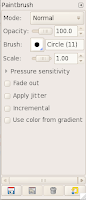 Tool options
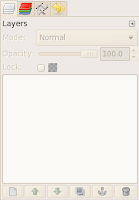
Layers, Channels, Paths, Undo History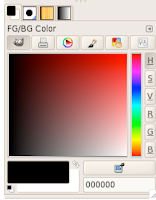 Foreground/ Background Color, Brush, Pattern, GradientMost of these tools are used in our sixth, seven, and eighth grade Gimp projects. It is frustrating to the students when a window disappears. Today I took the time to look at Preferences.
Gimp Versions
Depending on the age of the machine, I happen to have a few versions of Gimp running. In Gimp version 2.4.6, I found the option under File - Preferences. In version 2.6, preferences is on the Edit menu.
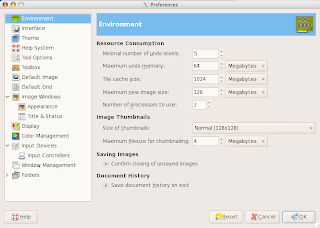 I plan on spending more time looking through the preference settings, but the one I required to fix my disappearing tool windows is located in Window Management.
Window Management
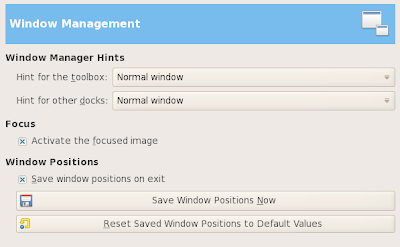 The first thing I did was to click the Reset Saved Windows Positions to Default Values button. I quit Gimp, restarted, then positioned the windows exactly where I wanted them on each computer. It varies depending upon the type of machine and its monitor size. I quit again, so that it would save the window position when I exited. Finally, I restarted Gimp and removed the x from the Save window positions on exit option.
I'm really looking forward to starting Gimp with the sixth grade! All the headaches of disappearing and rearranged tool windows from previous years are behind me.
 I've been using a Time Travel Agency idea for an eighth grade PowerPoint project for the last three or four years. I've modified the project to suit my needs. Each year, I get new ideas and hope to improve on the previous version of the project.


