An interesting thing happened this week. Our social studies teacher gave the eighth grade students the opportunity to share what they learned about World War I through a slide presentation. They used Open Office Impress on the tablets for the first time.
Success We've been learning to use PowerPoint since the students were in the fourth grade. I did not tell the students how to get to Impress on the tablets. They found the program, learned how to use it, and created their presentation.
I debriefed one of the two classes of students yesterday. They shared their thoughts on the program. They felt it was harder to use than PowerPoint. They had to do a lot of digging through the menus to find what they were looking for. They found the design templates and were disappointed in finding only three.
This is a success. They knew enough about what they wanted to do to make Impress work for them.
Failure? I spoke with the teacher and asked her to informally keep a tally of how many students flooded the screen with text versus presentations heavy on images. I haven't found out what she saw, but got informal feedback from my son. He was surprised that she didn't "say" that the slides should be light on text/ heavy on images and talking. He was surprised that she told them afterwards that the slides had too much text overall.
I need to have a look at the presentations and then start being more emphatic when I explain why we create slides as we do in computer class. I want them to be aware that they need to make this the format for all slide presentations.
Student Response I think I am going to have the eighth grade make a student response project. The idea is just forming in my brain right now, but I will give them the option to create a video or audio podcast, a PowerPoint, graphic image, or mini poster in Word. I'll come back later to document how it all turns out.
An Aside I have to look at Impress on the tablets at school on Monday. There are more than three layouts on my Mac. I wonder if I need to update Open Office on the XP machines. Giving it a quick test run, it seems very intuitive after having used PowerPoint for years.
Last week, we had our day with a team from CDW/G, Discovery Education, and Hewlett-Packard. Winning the Wireless Lab Sweepstakes has really been great in every way.
The Big Rollout We had five sessions with students from the fourth through eighth grade and our guests. Each session lasted about 45 minutes. First our host Mary from Discovery Education told the students a little about the contest. She introduced a library specialist, Pam, who traveled up from her school in Maryland to talk about Discovery streaming. She gave a brief overview of what type of content the students could see when their teacher found useful videos for their subjects. Our guest from Hewlett-Packard, Wayne, gave a short overview of how the stylus and Windows Journal worked on the tablet to write. He showed them the Snipping Tool application and created a quick document that converted written print to typed text. The students ended up with about 20 minutes to play around in groups of two.
First Follow-up Technology Class One of the things I like to do with students is give them free time on equipment and software before we get into its scholastic use. During class one this week, I told the students that I had three goals: to have them start the machine and set it up as a tablet, open - use - and close a variety of programs, and shutdown and stow the tablet. These goals were aimed at the fourth to eighth grade students.
They were limited to using a folder with items called PowerToys for Tablet PC. I learned about this set of free tools from Kathy Schrock. They are great for getting exposure and comfort with the stylus.
Their hands down favorite is Microsoft Physics Illustrator for Tablet PC. It gives students the ability to set up closed shapes, connect them with rods, and set a force on an object or objects. They can play back their creation and see how it operates.
Second Follow-up Technology Class Our Spanish teacher is very excited about have a traveling lab of 20 wireless tablet PCs. I know she will be using our Discovery streaming and will be asking them to accomplish some writing tasks. Our goals for the second class was to learn to start and use the Open Office Writer program.
I explained the reason for using Open Office versus Microsoft Office. We did not have money for software for the tablets, so I chose to use open source software. It is a great example to the students. We do not simply use software that we haven't paid for. If they have computers at home and wish to use Microsoft Office, but cannot pay for the student edition, they will have a new option.
I played a short clip on Discovery streaming, the song La Bamba. The words to the song were on the screen. I gave the students the option of just listening or singing along. Next, I presented them with the text of the song on paper. I needed to make sure they could insert characters with accent marks. They learned how to select Insert - Special Character... from the Writer program.
Lessons Learned This Week First - the machines are set to Auto Update. This would not have been big problem, but the machine grayed out the option to "do this later". So, whenever it popped up on the screen, we had five minutes to quickly save before the machine restarted. It would have been fine if it happened to one student, but it was slightly harder with five fourth graders having this problem at the same time.
TO DO: Turn off Auto Update.
Second - The battery life is great. We shut down the computer between classes and I almost made it to the end of the day without the need for electrical cords. The last class of the day four fourth graders screens started going dark. I had to quickly grab plugs from the cart and get them plugged into outlets. It was hard for the students waiting for assistance.
TO DO: Teach the students how to check the battery life when they start the computer.
Third - There is a little light sensor. It darkens the screen when the student's arm goes over it. It is on the lower right of the screen, so most righties had to get used to keeping their arms out of the sensor's way.
TO DO: See if I can change the sensitivity.
Fourth - The screen should be able to orient in portrait or landscape mode, but it wants to force itself into portrait mode when it is set up as a tablet.
TO DO: Learn how to change the orientation so it sticks.
The Primary Students The first through third grade students did not attend the big rollout. This week, I showed them the tablet and gave them time to play with Tux Paint. They really liked the program. I will have to bring down the tablets from the second floor every few months to get them used to the tablet. I will have to find some lessons that will provide them with more than just play time.
Next Week I was going to put the tablets premanently on the second floor next week. I still don't feel like the students will be entirely comfortable without my backup. They need to become the ambassadors to the teachers. I will have to provide two more lessons next week. This will give me the opportunity to make sure the TO DOs on my list are address and learn what else will be required to make them self sufficient.
Image Citation: IT News SK: http://www.itnews.sk/buxus_dev/images/2006/Microsoft_Physic_Illustrator_velky.png
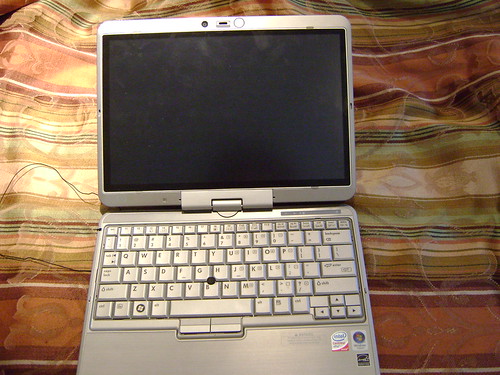
Receiving the 20 HP Tablet PCs (model 2710p) will be amazing for our school. I'm not sure what I would have done seven years ago when I first started teaching. We keep our hardware and software up-to-date through state funds. Purchasing 20 copies of Microsoft Office and KidPix would have eaten up a lot of the funds.
Free Open Source to the Rescue As a record for the future, I am listing the software that I have downloaded for the first foray into Windows at the school. I am sure some software will be a hit and some will be removed or replaced.
OpenOffice: This will be our suite of tools for word processing (Writer), spreadsheet (Calc), and presentations (Impress). It will also provide me with database software (Base). I have not taught databases at all to any grade and it will give me a reason to do so. It also comes with drawing software (Draw) and a math equation editor (Math). I am hopeful that it will work so well that I never need to purchase MS Office again.
TuxPaint: I really love KidPix and I may have enough copies in house to install it on the tablets, but I'm going to start with TuxPaint. It is similar in many ways. It will be interesting to see how the students react to this piece of software.
Gimp: Gimp is my tool of choice on the iMac for several years. It is a complex program that allows my students to have access to Photoshop-type tools. We have used it to create GIF animations, too.
Google Earth: This program is quickly becoming a "must have" for so many different projects.I only scratched the surface introducing the program last year. I had a Make Way for Ducklings lesson for the younger students. My older students identified the locations of the schools that we collaborated with. I have not even begun to calculate distances with the students or create KMZ files. Any discipline could include Google Earth for student learning.
Google Sketchup: I added this program for the future. I've heard several teachers talking in various forums about using this 3-D modeling software. Students as young as the fourth grade have had success. I'll certainly try to give the students experience with the software this year.
Firefox: This is my browser of choice. I used to use Internet Explorer on the Mac. Microsoft stopped developing new versions for OS X, so I moved on to Firefox and never looked back. I liked it better than the old version of Safari. Now that we will be on multiple platforms, I have the luxury of using the same browser on all of the machines.
NVU: This program is a web authoring system. I lost my web server space about a year ago, but before that I used this program to give the students experience creating web pages. It is pretty simple to use.
Windows Movie Maker: We have been enjoying movie making in computer class. The tablet has a built-in web cam. The prize package includes two digital video cameras. Many teachers pointed me to this program. It is available as a part of Windows XP Service Pack 2.It doesn't look as robust as iMovie, but it will certainly do the job.
Windows Photostory: This is another highly recommended program. It looks like it will give me iPhoto type capabilities. You can take photos, add special effects, and soundtracks to create photo stories.
Audacity: We create podcasts in computer class. I think there is a lot of power in having students condense and restate what they have learned through a podcast. In the absence of Garageband, we will use Audacity with the LAME converter to create audio files for podcasts. It is a free audio editor and recorded that I have used personally with great success. The students will have no program with this program.
Scratch: This is a great little tool to teach object oriented programming to students. I used it with grades five through eight last year. I will be trying it out with some of the lower grades this year. It is very easy to use and has some features that make it similar to the Logo programming language.
TuxType: This program will be useful to help students practice their typing skills. There are a number of games to help hold their interest. I haven't had success running the program under OS X, but it works fine on Windows.
IrfanView and Picasa : Additional image viewers, should I need more than I have listed above.
Finally, I had Microsoft PowerToys for Windows XP Tablet PC Edition recommended to me. It has a set of tools and games for the tablet. It will take time to see what the students find most useful. Among the tools are several different art-type programs, a calculator, dictionary, physics illustrator, games, writing practice, and font generating tools.
Where Do I Go From Here? I am sending the tablet back to CDW/G where they will take an image from the machine and replicate it on 19 more machines. I should probably purchase imaging software with this year's budget for the future. I can't wait to start using the software with the students and see where we take the school. I know I will look back in two or three years with gratitude for this opportunity.
Image Citation: My own image from my NJ Tech Teacher photostream: http://www.flickr.com/photos/11249246@N04/2706814274/in/set-72157601439024372/
 An interesting thing happened this week. Our social studies teacher gave the eighth grade students the opportunity to share what they learned about World War I through a slide presentation. They used Open Office Impress on the tablets for the first time.